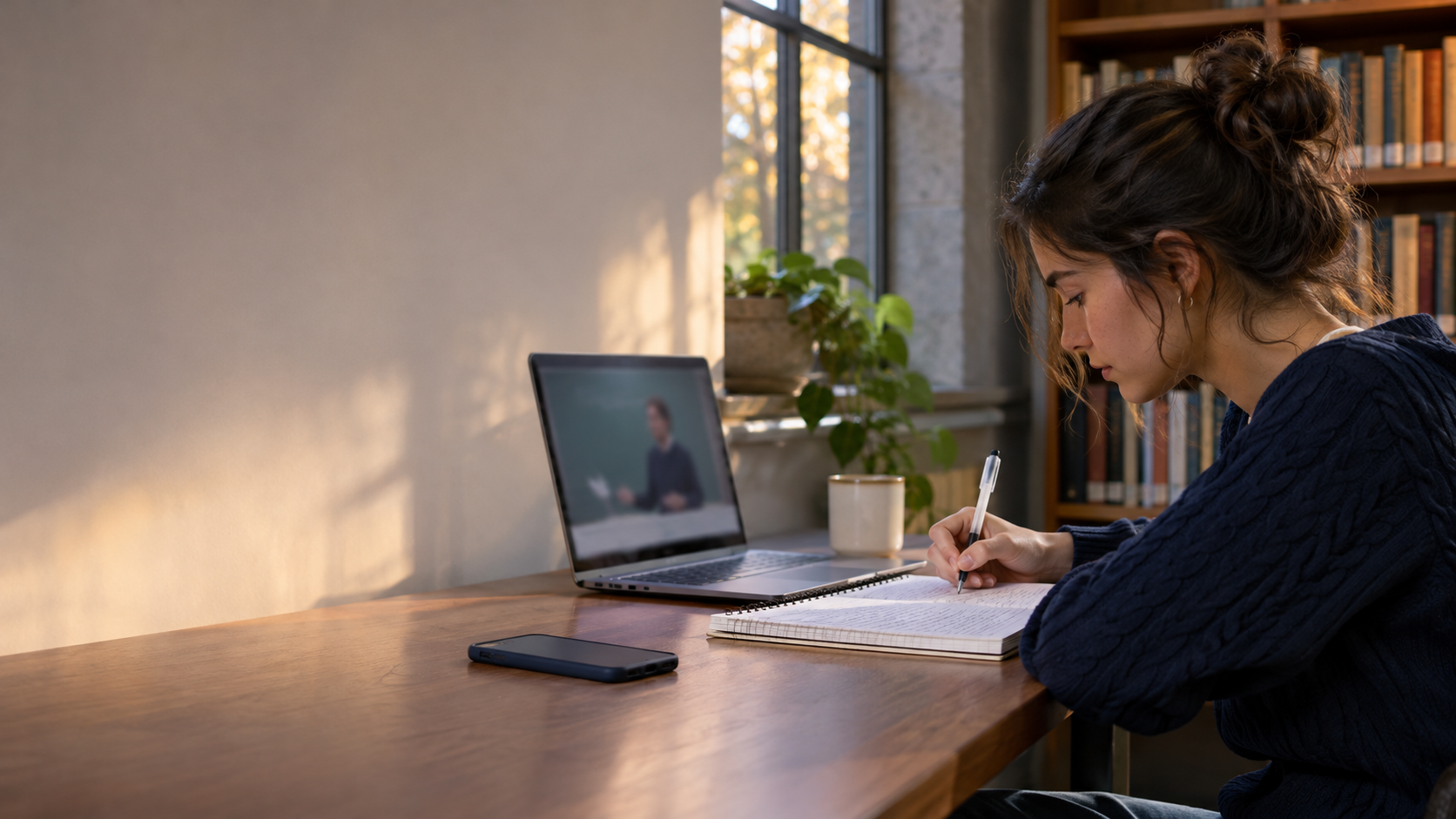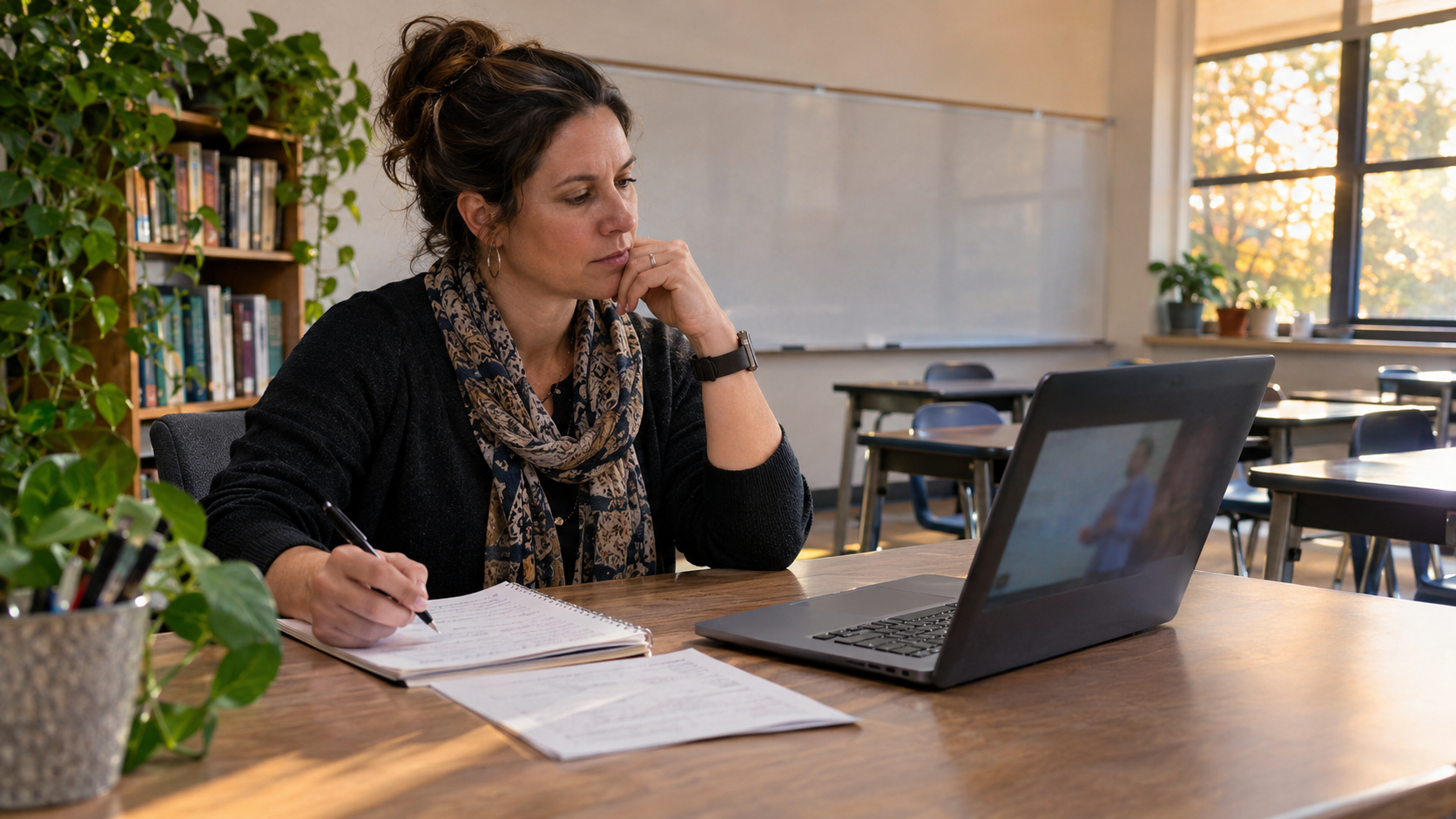
A teacher picks one useful video about photosynthesis. A student opens the assignment, finishes the explanation, and then follows an unrelated suggestion. The problem was never the lesson. It was the route used to reach it.
If your school uses Google Classroom or another supported learning platform, YouTube's Player for Education is the most direct way to assign a specific video without the usual watch-page recommendations. The important detail is how you attach the video. Pasting an ordinary YouTube URL into assignment text can send students to the regular YouTube page; adding it through the platform's YouTube video attachment gives them the supported embedded player.
For the part of learning that happens after the assignment, Quietube gives students on Android a focused space to watch educational YouTube content, keep video notes, and return for revision. The classroom player handles the teacher's chosen video; Quietube helps a student continue studying a topic on their own.
The quickest answer for teachers
In Google Classroom, open the class, go to Classwork, create an Assignment, select the YouTube attachment option, then search for the video or paste its URL and choose Add video. YouTube's current Player for Education instructions describe this as Classroom's default player. Your school's administrator must also have YouTube attachments enabled in Classroom, according to Google Classroom Help.
That route keeps the student on the assigned video. YouTube says its education player removes recommendations, ads, end screens, comments, and links back to YouTube. It still supports captions and playback speed controls, which matter when students need to pause or replay a difficult explanation.
Pick the sharing method that matches the lesson
| Sharing method | Student experience | Best use |
|---|---|---|
| Plain YouTube link | May open the regular YouTube watch page, with its surrounding navigation and suggestions. | A quick reference when a school learning platform is unavailable. |
| YouTube attachment in Google Classroom | Uses Player for Education when the school's setup supports it; students see the selected video in the assignment. | Homework or a lesson with one clearly chosen video. |
| Embedded video in a supported school platform | Can use Player for Education if that platform has adopted it. | Schools already using Canvas, Edpuzzle, Seesaw, or another supported tool. |
YouTube lists current education integrations, but the list and a school's access can change. Ask your school administrator which player your platform actually uses. A regular embedded YouTube player and Player for Education should not be assumed to behave identically.
Build a Google Classroom assignment students can finish
1. Choose the video for one learning objective
Write the outcome before searching: “Explain why plants need light in photosynthesis,” for example. Watch the whole video yourself. Check its accuracy, pace, captions, and any examples that might confuse your class. A five-minute video with one clear explanation is often easier to use than a 25-minute survey of the entire topic.
Also confirm that the video can be embedded. YouTube says most videos can be assigned, but creators may restrict embedding and school content controls can limit availability. Its Player for Education FAQ explains both limits.
2. Attach the video through the YouTube option
In Classroom, go to Classwork → Create → Assignment, choose the YouTube icon, then search or paste the selected video URL and click Add video. Write the task next to the attachment: the question students must answer, the timestamp they should revisit, and what they should submit.
For example: “Watch the video to 4:10. Pause after the diagram. In two sentences, explain where the plant's energy comes from, then draw the process from memory.” This gives students a reason to stop at the end rather than continue watching.
3. Check the student view
Open a preview or use a permitted test student account before assigning it to the whole class. Confirm that the video opens inside the assignment, captions work, and there is no path to an unrelated recommendation. If the video is unavailable, choose another embeddable video rather than sending students to a broken lesson.
This check is especially useful on a school-managed Chromebook or network. A teacher's account may be able to browse YouTube while student accounts cannot. YouTube says Player for Education can still show teacher-assigned videos when the main youtube.com site is blocked for students, provided the school has configured the supported player.
What the education player changes
Player for Education gives the student a view-only video experience. According to YouTube's feature description, it hides comments, likes, shares, subscriptions, end screens, paused-video thumbnails, and sidebar recommendations. Video and banner ads do not appear during playback. The player does not save watch history or build advertising profiles from that viewing.
The trade-off is deliberate: students cannot browse related videos from inside that player. If the lesson needs a second explanation or a follow-up example, attach that video as a separate, named resource and say when to use it. One teacher-chosen next step is more useful than an algorithmic next step.
For live instruction, YouTube also recommends using the player inside supported tools such as Google Slides. Its teacher guide describes setting start and end times in Slides, which can help when only a short section of a longer lecture fits the lesson.
When the YouTube attachment is missing
Google Classroom says a school administrator must enable the YouTube attachment option. If you cannot see it, check with the administrator or your learning technology team. Ask whether your school platform has adopted Player for Education and whether the chosen video is allowed by school content controls. Google's assignment guide documents the admin requirement.
If you must share a regular YouTube link, make the task narrow: provide the exact video, a start and stop point, and one question to answer before leaving the page. Students can reduce their own watch-page distractions by turning off autoplay and managing recommendations; our student guide explains those controls. Those personal settings help with self-study, but they do not turn a plain link into Player for Education.
Let students continue the topic in Quietube after class
The assignment is one part of a lesson. A student may still need a second explanation, a place to save a useful video, or a way to check what they remember tomorrow. That is the independent study problem Quietube is built to solve.
You could make the follow-up optional and specific: “After the assigned photosynthesis video, explain the role of light in your own words. If you need another explanation, search that question in Quietube, save the most helpful lesson to Marklist, and write one note about what changed in your understanding.” The student can then try a quiz or revision question and schedule a short revisit.
Quietube's Quiet Session helps students stay with the learning task without Shorts and recommendation clutter around the video. Its in-app AI can help when a point in the explanation is unclear. These tools are most useful when they lead to an answer the student can give without the video open.
Teachers should keep the official assignment, due date, and submission in the school's approved platform. Students can try Quietube on Android for their own focused follow-up study.
A simple lesson plan that avoids the next-video trap
Suppose a Year 8 science class needs to explain energy transfer in a food chain. The teacher selects one six-minute video and attaches it to a Classroom assignment. The instructions ask students to pause at a specific diagram, draw their own three-organism chain, and answer: “What happens to available energy at each step?”
The video ends after the chosen explanation. The student then completes the drawing and answer in the assignment. If some students need another example, the teacher provides a second video as an optional attachment labelled “Extra example.” The next action is clear without a recommendation feed.
Questions teachers and parents often ask
Does adding any YouTube link to Classroom remove recommendations?
Use Classroom's YouTube video attachment option and check the student view. A plain URL in the assignment description may open the standard YouTube page. YouTube identifies Player for Education as the default player for YouTube videos added through Classroom's supported workflow.
Will Player for Education work if YouTube is blocked for students?
It can, when the school has the supported setup. YouTube says administrators may keep youtube.com blocked while allowing teacher-assigned videos through the separate education player. Confirm your school's configuration before promising students access.
Can students use captions or change playback speed?
Yes. YouTube says the education player includes captions and playback speed controls. Audio tracks in other languages are available when the creator provides them.
Can parents use the same player at home?
Player for Education is available through participating education platforms, not as a separate app for any YouTube link. For a teen's personal YouTube use, parents can instead review Family Center's time management controls, including a Shorts feed limit for supervised accounts. That is a different control from a teacher-assigned video.
The practical rule is simple: choose the video, attach it through the supported education player, and give students something specific to do when it ends. When they need further practice, Quietube can carry the topic into notes, a saved lesson, and revision without sending them back into a recommendation feed.

Full-Stack Web & Mobile App Developer crafting ultra-fast, high-converting digital products.